The following instructions outline our recommended methods of installing Autodesk software.
If you are supported by OTDI, packages should be available in Software Center for AutoCAD, Civil 3D, Revit, and TrueView. If they are not there, please enter a request here to have them added to your Software Center. This is an easier way to install the software that does not require local admin rights.
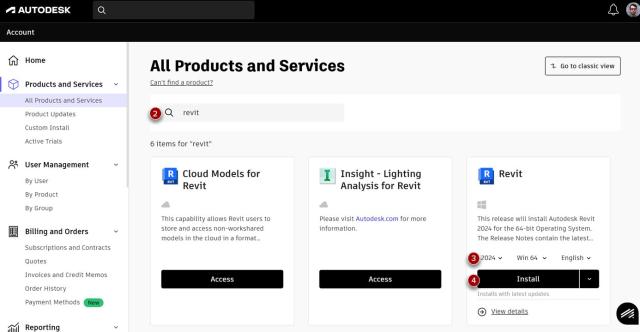
- Please note, to install applications onto a University computer you will need local administrator rights on the device. To install the individual applications, visit the Autodesk Products and Services page. You will be required to log into your Autodesk account.
- Optional: Use the search to locate the appropriate software.
- If you use Revit, please note that Revit models are software version dependent. Revit files are not backward-compatible; newer version files cannot be opened directly in older releases. The University's models are currently maintained in Revit 2026. To download this version of Revit (or another version of any Autodesk software package), use the version drop-down to select the correct version.
Click Install. This will download an install file to your computer.
- Open and run the local install file, following the prompts to make any necessary install option selections.